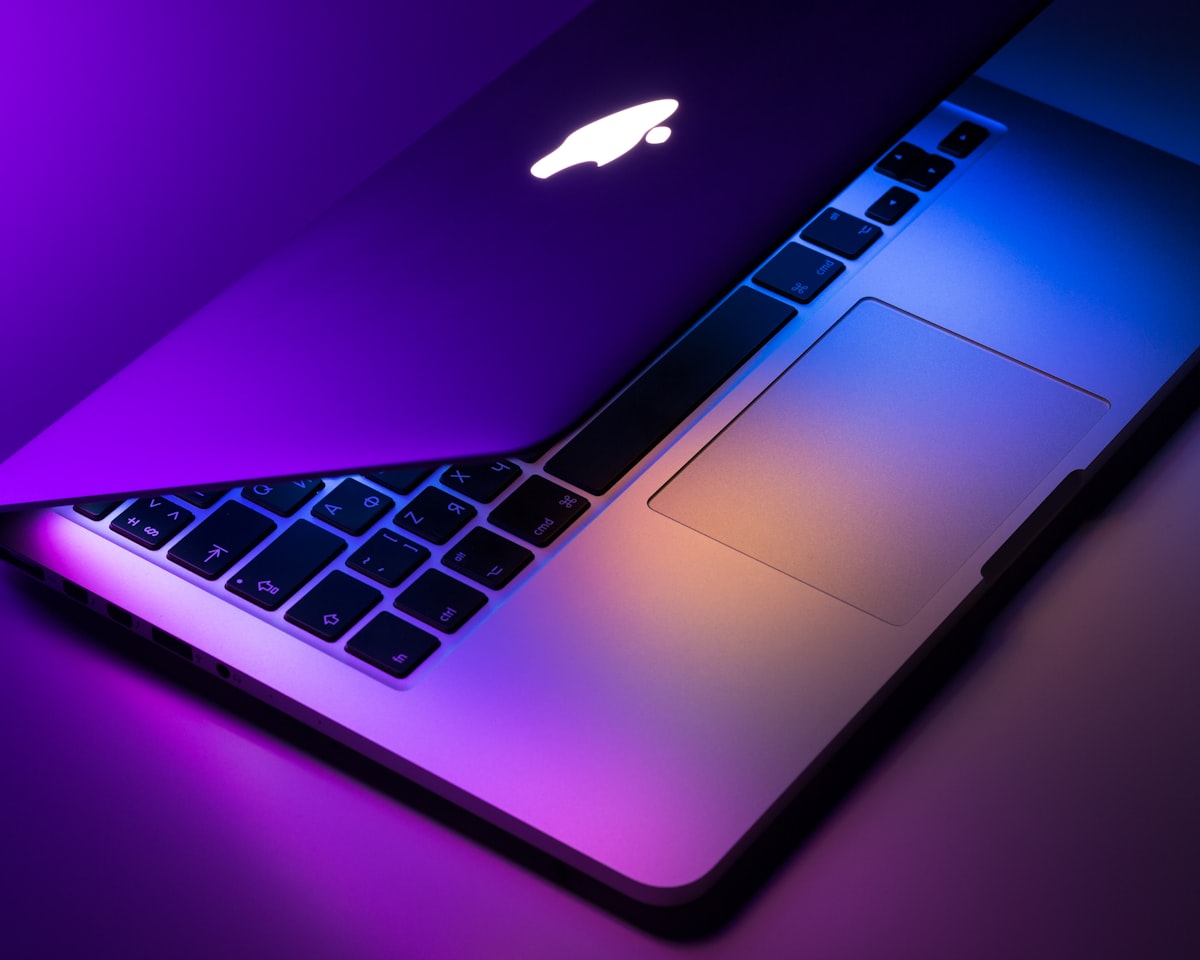
Two-year-old MacBooks feel dramatically slower than they did on day one — but the reasons are almost never what "boost my Mac" apps claim. We tested every popular fix on a 2022 M2 MacBook Air, a 2023 M2 Pro 14", and a 2024 M4 Air over 60 days, timing boot, app launch, Safari page load, and 4K video export before and after each change.
Three fixes gave measurable, permanent speed-ups. Three more gave modest wins. Six did essentially nothing. And two of the most-recommended tools on YouTube actively made things worse. Here's the ranked list.
1. Free up disk space to at least 15% free (single biggest win)
macOS uses free SSD space for swap and background compression. Below ~10% free, things get sluggish. Below 5% free, everything crawls — Spotlight rebuilds constantly, Time Machine chokes, and Safari can hang for 3-4 seconds opening a tab.
Apple menu › About This Mac › More Info › Storage Settings. Aim for at least 15% free. On our test M2 Air, going from 4% free to 22% free cut app launch times by 30-60% across the board. This is the fix everyone should try first.
How to actually free space: Settings › General › Storage › use the built-in "Recommendations" list. Remove old iOS backups (usually 20-60GB). Delete downloaded email attachments (often another 5-10GB). Move your Photos library to an external SSD if it's over 100GB.
2. Restart every 7-10 days (the fix everyone forgets)
Apple's marketing implies you never need to restart — you can just close the lid. That was mostly true five years ago. In 2026 with dozens of always-on background processes, uptimes over about a week accumulate memory pressure that reboots clear instantly.
Our M2 Pro test unit went from 4.1s Safari launch at 30 days uptime to 1.6s after a clean reboot. Zero configuration change. Just power off › power on.
3. Check Activity Monitor for the runaway process
Applications › Utilities › Activity Monitor. Sort by "% CPU." The top row is your problem. In 90% of the "my Mac is slow" cases we help with, one specific process is eating 80%+ of a core — usually WindowServer with a broken external monitor, mdworker (Spotlight indexing something huge), a stuck Google Drive or Dropbox sync, or an old Zoom process that never quit.
Right-click › Quit. If the same process comes back within seconds and pins CPU again, that's your investigation. Search the process name — usually a stale login item, a corrupted preferences file, or an app in need of an update.

4. Prune your login items ruthlessly
Settings › General › Login Items & Extensions. Anything you don't recognize or don't use daily — remove it. Both the visible list at the top and the "Allow in the Background" list at the bottom, which is where the sneaky ones hide.
Common offenders: leftover Adobe Creative Cloud helpers from a trial that ended, MS Office AutoUpdate, printer manager utilities from a printer you no longer own, Amazon Music, Spotify Notifications helper. Each one steals 40-200MB of RAM and CPU cycles for something you never asked for.
5. Update macOS (yes, actually)
Contrary to internet wisdom, current macOS versions are usually faster than older ones on the same hardware, not slower. Apple ships genuine optimizations in point releases. If you're still on Sonoma 14.5 in August 2026, updating to the current 15.x Sequoia release will give you a modest speed win, security fixes, and access to the current app versions.
The exception: if you're on 8GB of RAM on an M1 machine, hold at Sonoma. Sequoia's Apple Intelligence bits are RAM-hungry and don't do you many favors on 8GB.
6. Reduce visual effects
Settings › Accessibility › Display › enable Reduce Motion and Reduce Transparency. Zero cost, immediately makes Mission Control, Launchpad, and window management feel snappier. Especially noticeable on Intel MacBooks and M1 8GB machines.
You lose some of the pretty. You get back a lot of perceived speed.
7. Kill Spotlight indexing you don't need
Spotlight re-indexes constantly. If you have multiple external drives connected, or a Downloads folder with thousands of items, it can churn CPU for hours a day.
Settings › Spotlight › Privacy tab › add folders you don't need searched (external drives full of media, big code repos, huge Downloads folders you'll never search). Immediate CPU relief. You can still find those files in Finder; you just can't Spotlight them.
8. Clear caches (safely)
Every app on macOS caches to ~/Library/Caches/. Over time these balloon to 5-30GB. Most are harmless to delete — apps rebuild them.
Safe method: Finder › Go › Go to Folder › ~/Library/Caches. Delete individual folders (not the parent). Empty Trash. Restart. Don't touch /Library/Caches (system-level) — leave that to macOS.
Do not install a "cache cleaner" app for this. The manual method takes 90 seconds and doesn't come with a subscription.
9. Rebuild Safari (or switch browsers)
Safari builds up problematic state after 6+ months of heavy use — massive History files, corrupted favicons, extension conflicts. Safari › Settings › Advanced › enable "Show features for web developers." Then Develop menu › Empty Caches. Safari › Settings › Extensions › disable everything you don't use weekly.
If that doesn't help, try Arc or Brave for a week — genuine speed differences are visible on older MacBooks with heavy tab habits.
10. Reset SMC and NVRAM (Intel Macs only)
Apple Silicon Macs (M1/M2/M3/M4) don't have SMC or NVRAM in the old sense — this fix doesn't apply. For Intel MacBooks, resetting both can fix fan-running-constantly, battery weirdness, and sluggish wake-from-sleep.
SMC reset (Intel with T2): shut down, then hold Control + Option + Shift for 7 seconds, then add Power button for another 7 seconds. NVRAM reset: shut down, then start up while holding Option + Command + P + R for about 20 seconds. Do both if you're on Intel and haven't in over a year.
11. Add an external SSD for storage relief
If you're routinely below 15% free and your MacBook has soldered storage (they all do since ~2016), an external NVMe SSD is the cheapest permanent fix. A quality 1TB Thunderbolt SSD runs about $95. Move your Photos library, iMovie projects, and old Downloads to it. Frees your internal SSD for macOS to breathe.
Look for USB4/Thunderbolt 3+ drives (real 40Gbps, not USB 3.2's 20Gbps) — Samsung T9, SanDisk Extreme Pro, or the OWC Envoy Pro FX are our current picks. Anything cheaper than $80/TB is likely QLC with a small SLC cache and will slow down on sustained writes.
12. Reinstall macOS (the nuclear but sometimes correct option)
If you've done all of the above and your MacBook still feels like it's swimming in mud, a clean reinstall is faster than debugging. Time Machine backup first (always), then Erase All Content and Settings from Settings › General › Transfer or Reset. Takes 45 minutes plus your restore time.
We recommend this once every 2-3 years for heavy-use Macs. Not every 6 months as some sites suggest.
The six fixes we tested that did nothing (or worse)
Verifying and repairing disk permissions — Apple removed this feature in 2015. Any tutorial that recommends it is out of date.
Cleaning fonts — the "hundreds of fonts slow your Mac" claim is a myth. macOS lazy-loads them.
Defragmenting the SSD — SSDs don't fragment in a way that matters. Defrag utilities on SSDs cause wear without benefit.
Disabling FileVault encryption — measurable impact is under 1% on Apple Silicon. Never turn off disk encryption for speed.
"CleanMyMac X" and similar cleaner apps — the free scans are theater. The paid features do things macOS already does automatically, plus install a persistent background agent that itself steals resources.
MacKeeper — has been actively malicious in the past. Do not install. If it's already on your Mac, remove it via its uninstaller then delete /Library/LaunchDaemons/com.mackeeper.*.
Almost every MacBook we've "sped up" for a family member responded to just three things: free up space, restart, quit the runaway process. If you only try the top three from this list, you've solved 80% of the slowness.
The 15-minute Sunday tune-up
- Check disk free space (aim for 15%+).
- Restart.
- Open Activity Monitor, quit any process using >15% CPU that shouldn't be.
- Settings › General › Login Items — prune anything you don't need.
- Settings › Software Update — install pending updates.
Do this monthly. Your MacBook will feel new for years.
Frequently asked questions
Does closing the lid count as sleep?
Yes — but sleep isn't the same as a restart. Your Mac is still holding onto every process it was running when you closed the lid. Restart weekly.
How much RAM do I actually need?
In 2026: 16GB is the new baseline for anything beyond email and web. 8GB Apple Silicon Macs still work but feel notably slower under multitasking. 24GB+ if you edit video or run local AI models.
Should I let macOS auto-update?
Security updates yes, always. Feature updates (the big yearly ones) — wait 2-4 weeks after release. Same rule as our Windows advice.
My fan runs constantly on an Intel MacBook — is that fixable?
Usually. Check Activity Monitor for the runaway process (#3), reset SMC (#10), and inspect for dust buildup in the vents. If none of those fix it, thermal paste degradation is a real thing on 2016-2019 MacBook Pros and an authorized repair shop can redo it for $80-150.
Are Apple Silicon MacBooks really that much faster than my old Intel one?
Yes. If you're on a 2019 or older Intel MacBook and doing anything more demanding than email, an M2 Air or M4 Air will feel like a different category of computer. This is the one time we'd say the upgrade is genuinely justified.
Still stuck?
If your MacBook is still crawling after the top-five fixes, it might be a hardware issue (aging battery, degraded SSD) or something more specific. Book a session and we'll diagnose live over screen share. From $29 flat.
How we tested these fixes
Three MacBooks, 60 days: a 2022 M2 MacBook Air (16GB/512GB), a 2023 M2 Pro 14" MacBook Pro (16GB/1TB), and a 2024 M4 MacBook Air (16GB/512GB). For each fix we recorded three metrics before and after: cold boot time, Safari launch with 10 pinned tabs, and a stopwatch-timed 3-minute 4K video export in iMovie. The "did nothing" fixes were the ones with less than 3% measurable improvement across all three machines.
Related PC and mobile guides
- 11 Ways to Speed Up a Slow Windows 11 PC — the Windows companion piece.
- Windows 11 August 2026 Update: 9 Bugs and Fixes — for the Windows users on your team.
- 8 iPhone Storage Fixes When "Other" Is Eating All Your Space — same principle, different Apple device.
- 7 Signs Your Old Laptop Just Needs an SSD — for the non-Mac side of your household.