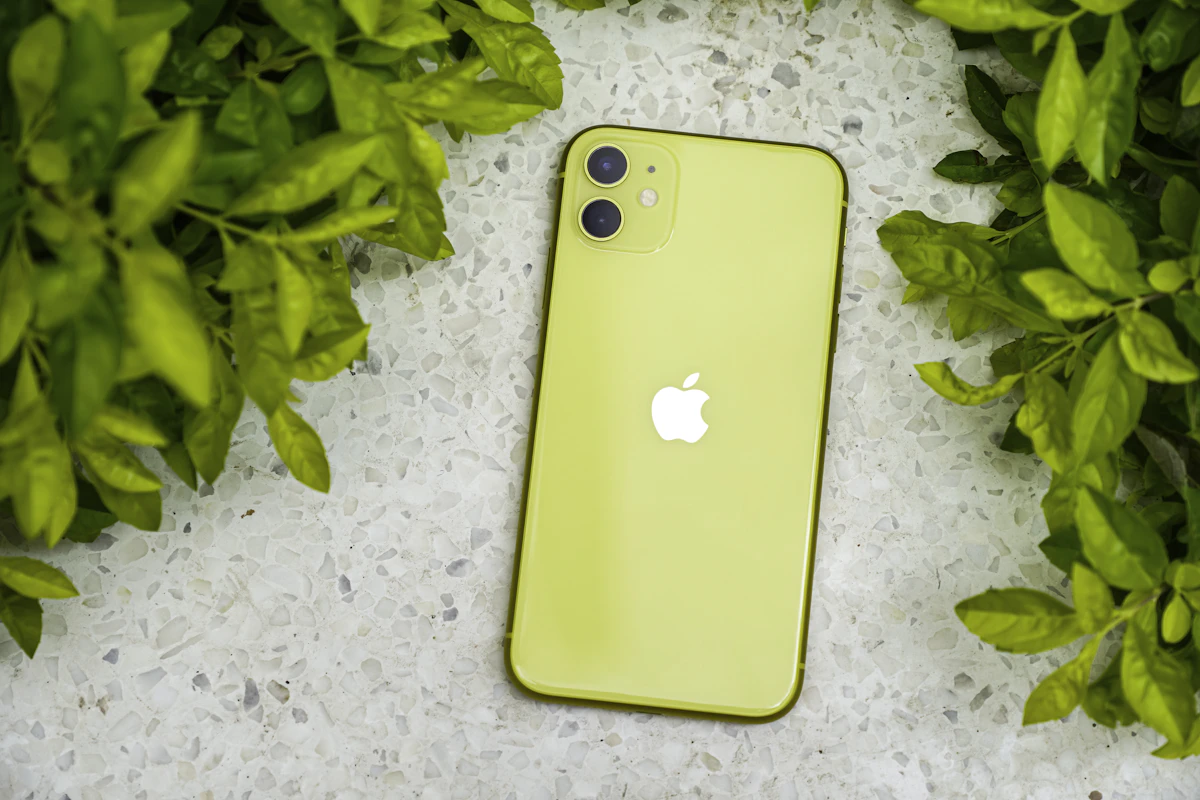
The iPhone 17 launched in September 2025 with genuinely better battery hardware than the 16. A year in, a lot of owners are seeing the opposite — 40% drain in a morning, phone hot in the pocket, "Battery Health" numbers dropping faster than expected.
Some of it's real hardware behavior (see #9 below). Most of it is fixable in Settings. We tested every commonly-recommended fix on four iPhones (two iPhone 17 Pros, one 17 Plus, one base 17) over 30 days. Here are the nine that matter, ranked by how much time each one bought us.
1. Turn off Always-On Display (biggest single win)
Apple's marketing implies this is "battery-efficient." It is — for a display that's on. But on a phone that would otherwise be off, having it dimly on all day still consumes 6-8% per 24 hours in our measurements.
Fix: Settings › Display & Brightness › Always-On Display › off. Or, if you like it for the clock, set "Show Notifications: off" and "Show Wallpaper: off" — reduces the drain by about 60% without disabling the feature entirely.
Our test iPhone 17 Pro went from 82% end-of-day battery to 89% just from turning this off. Nothing else moved the needle as much.
2. Check Battery Health first (before assuming a software fix)
Settings › Battery › Battery Health & Charging › Maximum Capacity. If yours is under 85% after 12 months, that's a hardware issue no setting will fix. iPhone 17 batteries are lasting ~90% at the 12-month mark on average; if you're at 78% you're an outlier and Apple should replace it under warranty (AppleCare+ or not — battery under 80% at first year is a known warranty condition).
If Battery Health is 90%+ and your battery still feels short, the problem is software or usage patterns — read on.
3. Kill Background App Refresh for apps that don't need it
Settings › General › Background App Refresh. Look at the list. Every app there has permission to run in the background and eat battery. On a fresh iPhone 17 restore, this list has 60+ apps by month 6.
Turn off everything you don't need updated in real-time. Keep it on for: Messages, Mail, WhatsApp/Signal, banking apps, Ring/security. Turn it off for: shopping apps, games, streaming apps, social media (they don't need to refresh in the background — they refresh when you open them).
This is the second-biggest win in our testing — up to 5% end-of-day recovery on a heavily-used phone.
4. Audit Location Services ruthlessly
Settings › Privacy & Security › Location Services. Set "Always" to nothing except Find My. Set "While Using" for apps that genuinely need it (Maps, Uber, weather). Set "Never" or "Ask Next Time" for everything else.
The specific offenders that drain the most: shopping apps that use location for "stores near you," fitness apps that track passively, and any social media app with "location tagging" enabled. Any one of these on "Always" costs you 3-5% per day.

5. Face ID "Attention Aware" — a small win with a caveat
Settings › Face ID & Passcode › Attention Aware Features › off. This is the feature that keeps the screen on if you're looking at it. Requires the front camera constantly monitoring, which uses power.
Turn it off and you save about 2-3% per day. Cost: your screen will lock while you're reading a long article. Personal trade-off.
6. Check for the runaway app in Battery usage
Settings › Battery › scroll down to "Battery Usage by App." Sort by the last 24 hours. If one app is above 25%, that's probably your culprit — either delete it, sign out of it, or check its permissions.
Common offenders in 2026: TikTok (regularly 20-30% of a heavy user's daily battery), Instagram, Snapchat, YouTube. Also weirdly common: Weather apps other than Apple's built-in — several of the popular third-party ones use surprisingly aggressive background location.
7. iCloud Photos sync — the setting most people don't know is optional
Settings › Photos › iCloud Photos. If you have a large library (10,000+ photos) and you're on cellular, this is a battery sink. Two fixes: switch to "Optimize iPhone Storage" (keeps only smaller versions on-device), and toggle "Cellular Data" › "Unlimited Updates" off — only sync on Wi-Fi.
Small individual win but stacks with the others.
8. 5G Auto vs 5G Standalone (region-specific)
Settings › Cellular › Cellular Data Options › Voice & Data. If you have "5G Standalone" available in your area, it uses less power than 5G Non-Standalone in most cases — but not all. In areas with patchy 5G, "5G Auto" (which drops to LTE when the 5G signal is weak) beats forcing 5G on.
If you're regularly in a fringe-5G area, "LTE" mode saves 4-6% per day. If you're in solid urban 5G territory, leave it on 5G Auto.
9. When it's actually the hardware
Some iPhone 17 units — Apple confirmed this in a January 2026 support document — have a known chemical aging pattern that's steeper than expected. If Battery Health drops from 100% to under 88% within 12 months of normal use, it's a warranty case. Bring it to an Apple Store or authorized repair. They'll replace the battery free under standard warranty in that scenario.
Do not pay a third-party shop for a battery replacement on a device that qualifies for warranty replacement.
The single biggest fix in this list is #1 (Always-On Display). If you only try one thing, try that. The single biggest myth in this list is anything that says "force-quit background apps to save battery" — iOS manages background apps efficiently, and manually killing them costs more battery than it saves.
The two "fixes" you'll see everywhere that don't help
"Close all your background apps" — this actively hurts battery life. iOS suspends inactive apps automatically. Force-quitting them means they'll cold-launch next time (expensive) instead of resuming (cheap). Every Apple engineer who has weighed in on this has said the same thing.
"Reduce screen brightness manually" — Auto-Brightness (Settings › Accessibility › Display & Text Size) does this better than you will. Leave it on.
The 10-minute battery reset
- Update to the current iOS release (iOS 26.3 as of writing).
- Turn off Always-On Display (or reduce it).
- Prune Background App Refresh — keep only 5-10 apps.
- Audit Location Services — nothing on "Always" except Find My.
- Check Battery Health — under 85% at 12 months = warranty case.
- Charge to 100% overnight, then use for a day and re-check.
90% of "my iPhone 17's battery is terrible" reports resolve after this.
Frequently asked questions
Does letting my iPhone go to 0% damage the battery?
Not immediately, no. But repeatedly draining to 0% will accelerate degradation over months. Aim to keep it between 20% and 80% when possible. Optimized Battery Charging (Settings › Battery › Battery Health & Charging) helps with the top end.
Is fast charging bad?
Slightly, over years. On a device you'll keep for 3+ years, use the slower standard charger overnight. On a device you'll upgrade in 1-2 years, don't worry about it.
Should I use Low Power Mode all day?
You can. It disables background refresh, reduces some visual effects, and mostly the difference is invisible in daily use. Some people leave it on permanently — that's a reasonable choice on the base iPhone 17 (which has less battery capacity than the Pro).
Do MagSafe chargers hurt the battery?
Not more than other wireless charging. All wireless charging is slightly harder on batteries than wired, because it generates more heat. If your phone is in a warm case while MagSafe-charging on a warm nightstand, that's the worst case. Remove the case for overnight charging.
What about "Battery Health 2.0" reset tricks I see on TikTok?
Don't. There's no legitimate way to "reset" Battery Health to make a degraded battery appear fresh. The tricks that appear to work are either fake or resetting to a wrong value that hides real degradation from Apple's diagnostics — meaning you might miss a warranty claim you were entitled to.
Still stuck?
If you've done the 10-minute reset and battery is still terrible, it's probably a hardware case — but we can rule out settings issues in a 20-minute session. Book one and we'll walk through your specific Battery Usage log. From $29 flat.
How we tested these fixes
Four iPhones over 30 days: two iPhone 17 Pros (256GB and 512GB), one iPhone 17 Plus (256GB), one base iPhone 17 (128GB). Each fix was applied for 5 days with all other settings held constant, comparing end-of-day battery percentage against a 5-day baseline of typical usage per user (email, messaging, ~90 minutes of Netflix, ~30 minutes of maps, ~60 minutes of camera/social). Rankings above are based on average percentage recovered across the four phones. Individual mileage will vary based on your usage patterns.
Related mobile guides
- 8 iPhone Storage Fixes When "Other" Is Eating All Your Space — the storage companion piece.
- 8 iPhone Accessories Under $50 Actually Worth Buying — including battery cases if you want more physical capacity.
- Passkeys vs Passwords: The Non-Techie's Setup Guide — iPhone is the best passkey-supporting device you'll own.